Player Count in Game Area
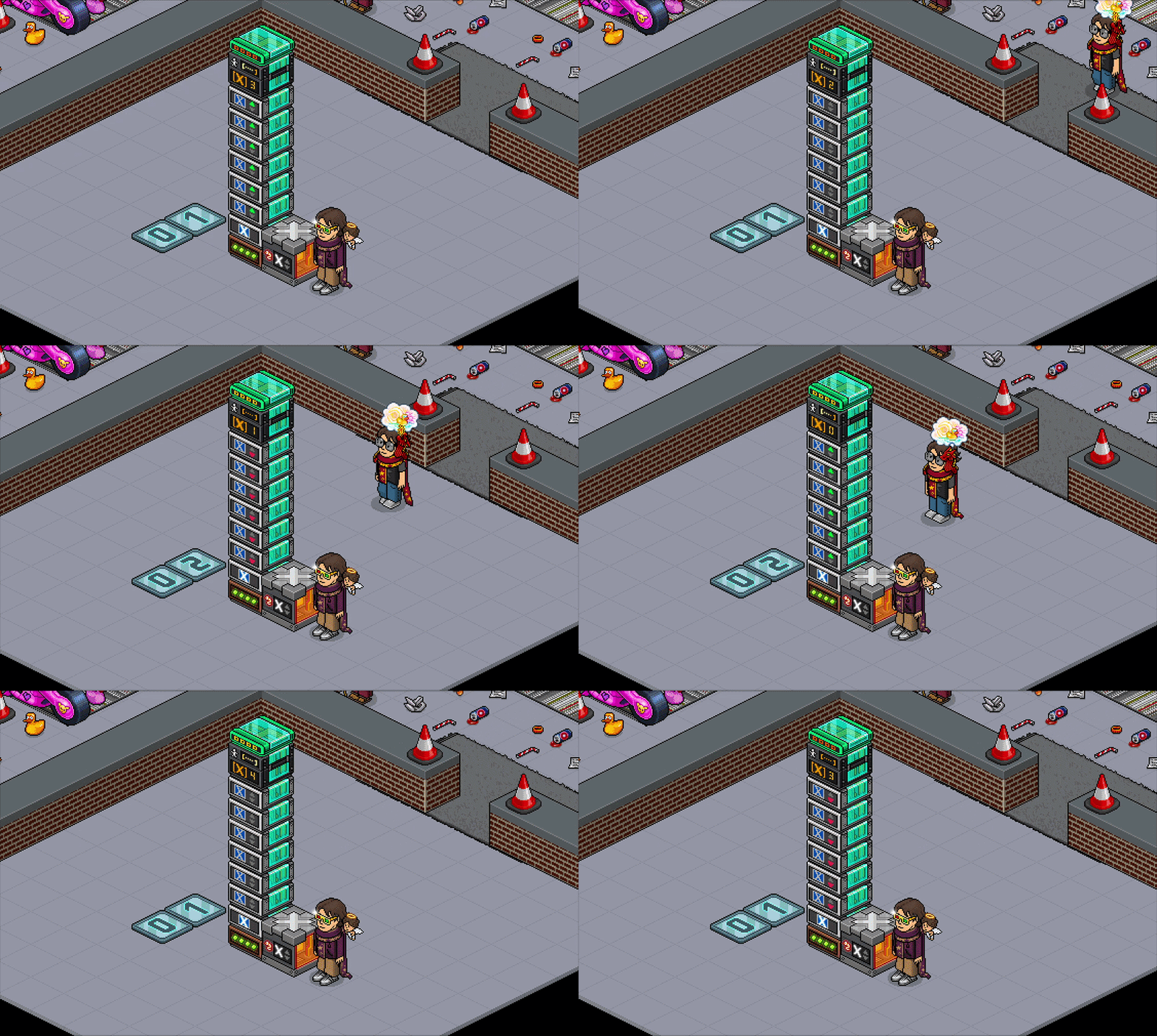
Want to know the exact player count of your game so you can better manage the crowds? This wired stack will seamlessly calculate the amount of players in your game area, updating in real time.
x1 WIRED Effect: Give Variable
x6 WIRED Effect: Change Variable Value
x1 WIRED Selector: Users In Area
x1 WIRED Add-on: Execute In Order
x1 WIRED Variable: Context Variable
x2 Number Block or Tile
You Will Need
x1 WIRED Trigger: Repeat Effect (Short)x1 WIRED Effect: Give Variable
x6 WIRED Effect: Change Variable Value
x1 WIRED Selector: Users In Area
x1 WIRED Add-on: Execute In Order
x1 WIRED Variable: Context Variable
x2 Number Block or Tile
Step 1
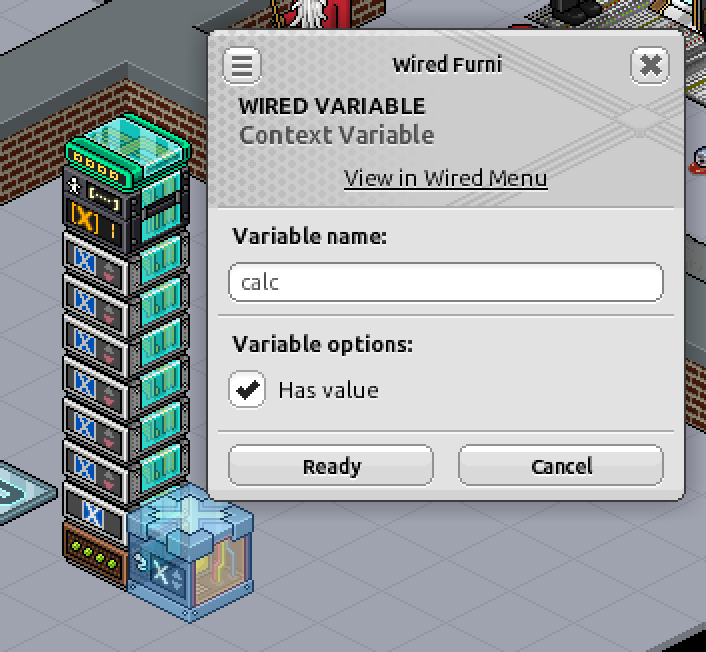
WIRED Variable: Context Variable
Type a variable name into your WIRED Variable: Context Variable, for this example I've used 'calc' throughout the guide. Select 'has value' in the variable options section.WIRED Variable: Context Variable
Step 2
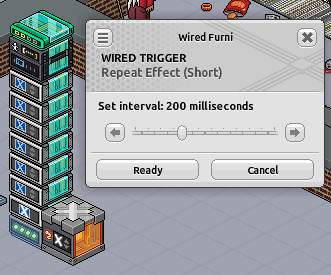
WIRED Trigger: Repeat Effect (Short)
This box requires no changes.WIRED Trigger: Repeat Effect (Short)
Step 3
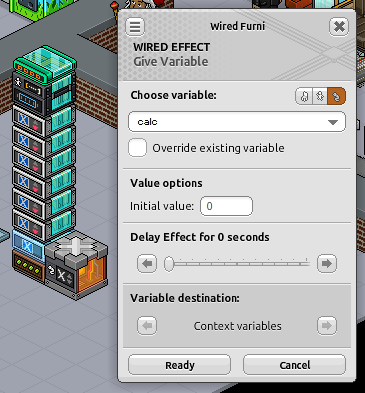
WIRED Effect: Give Variable
Select the context variable option in your Wired Effect: Give Variable by clicking the wire icon. Type 'calc' into the variable name section.WIRED Effect: Give Variable
Step 4
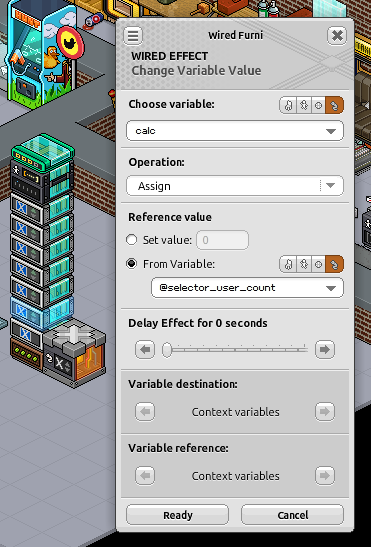
WIRED Effect: Change Variable Value
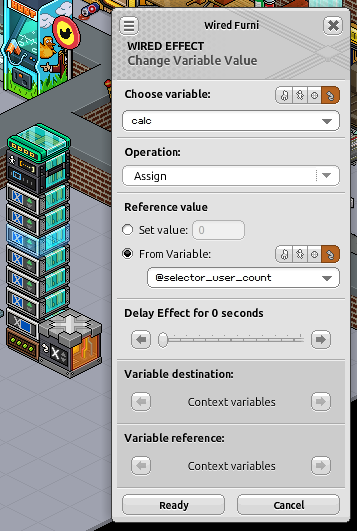
Select the context variable option in your Wired Effect: Change Variable Value by clicking the wire icon. Type 'calc' into the choose variable section. Select 'assign' from the operation section drop down. Select 'from variable' in the reference value section, select the context variable option by clicking the wire icon and type '@selector_user_count' into the drop down.WIRED Effect: Change Variable Value
Step 5
WIRED Effect: Change Variable Value
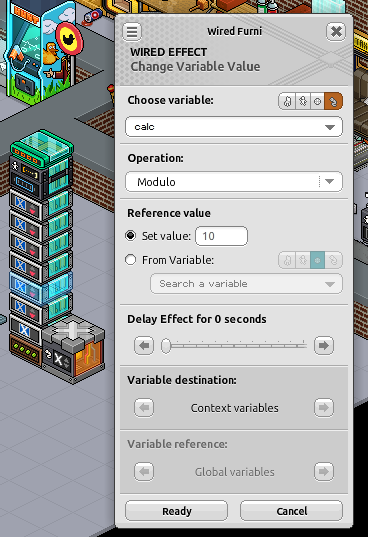
Select the context variable option in your Wired Effect: Change Variable Value by clicking the wire icon. Type 'calc' into the choose variable section. Select 'modulo' from the operation section drop down. Select 'set value' in the reference value section and type '10' into the box.WIRED Effect: Change Variable Value
Step 6
WIRED Effect: Change Variable Value
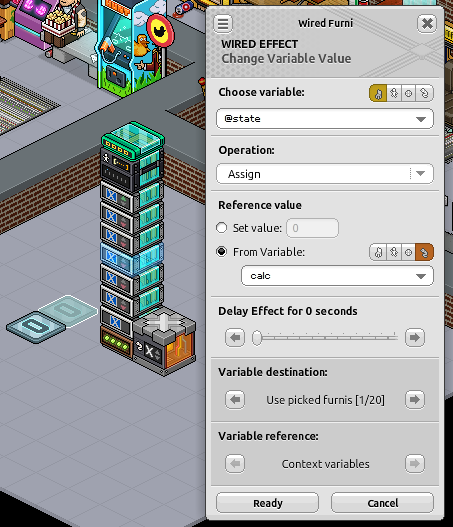
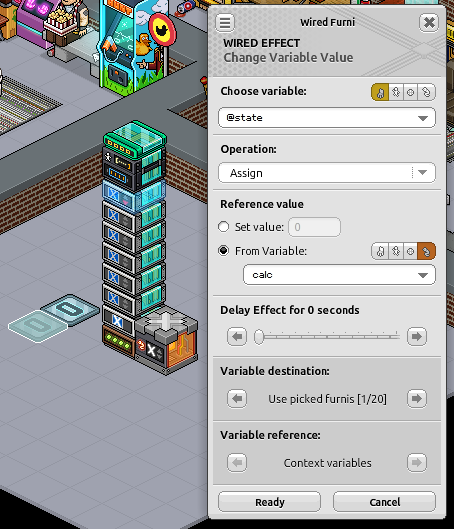
Select the furni variable option in your Wired Effect: Change Variable Value by clicking the chair icon. Type '@state' into the choose variable section. Select 'assign' from the operation section drop down. Select 'from variable' in the reference value section, select the context variable option by clicking the wire icon and type 'calc' into the drop down. Press the arrow in the variable destination section until 'use picked furnis' is selected. Select your number tile that's on the right.WIRED Effect: Change Variable Value
Step 7
WIRED Effect: Change Variable Value
Select the context variable option in your Wired Effect: Change Variable Value by clicking the wire icon. Type 'calc' into the choose variable section. Select 'assign' from the operation section drop down. Select 'from variable' in the reference value section, select the context variable option by clicking the wire icon and type '@selector_user_count' into the drop down.WIRED Effect: Change Variable Value
Step 8
WIRED Effect: Change Variable Value
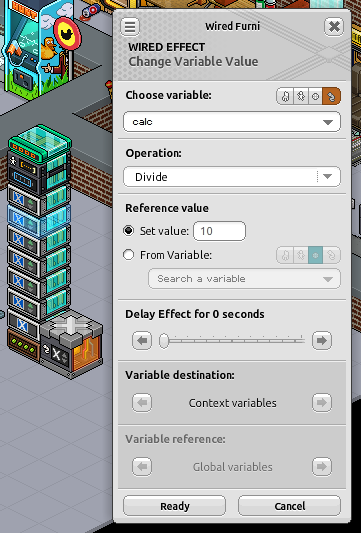
Select the context variable option in your Wired Effect: Change Variable Value by clicking the wire icon. Type 'calc' into the choose variable section. Select 'divide' from the operation section drop down. Select 'set value' in the reference value section and type '10' into the box.WIRED Effect: Change Variable Value
Step 9
WIRED Effect: Change Variable Value
Select the furni variable option in your Wired Effect: Change Variable Value by clicking the chair icon. Type '@state' into the choose variable section. Select 'assign' from the operation section drop down. Select 'from variable' in the reference value section, select the context variable option by clicking the wire icon and type 'calc' into the drop down. Press the arrow in the variable destination section until 'use picked furnis' is selected. Select your number tile that's on the left.WIRED Effect: Change Variable Value
Step 10
WIRED Selector: Users In Area
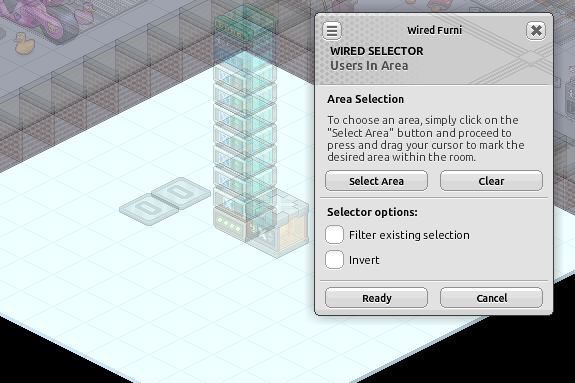
Click 'select area' in your WIRED Selector: Users In Area and drag from one corner of your game area to the opposite corner. Your whole game area should show as grey. WIRED Selector: Users In Area
Step 11
WIRED Add-on: Execute In Order
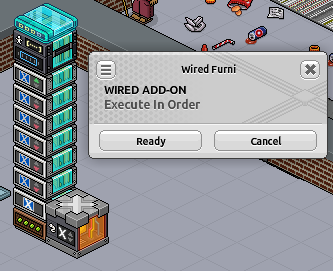
This box requires no changes.WIRED Add-on: Execute In Order
You're done!